The groups below follow the order of the TimeScope settings window. Defaults are the values of a new chart. Hover a setting in NinjaTrader to see its tooltip.
Help
- Version: the version on your chart. When TimeScope loads, it checks wizdough.com for a newer version. The row then says latest, names the newer version, or says check failed. Reopen the settings window to see the result.
- Install update: shows only when there is a newer version. Tick it to download the new TimeScope in your browser. A small window then shows the import steps. NinjaTrader keeps running until you restart it.
- Open documentation: tick it to open this guide in your browser.
- Support: tick it to open our contact page.
- Update notices: default on. When a newer TimeScope is out, a small note in the lower left corner of the chart says so, on a few days only. Right click the chart and open Wizdough to be reminded tomorrow or to skip that version. Off: no note, but the Version row and the Wizdough menu still name the newer version.
Time ranges
- Show time ranges: default on. Shades clock windows on the chart, each with a label that gives its times in New York time (ET) on that day. A bar is shaded when its close is after the start and at or before the end.
- Time range 1 to Time range 6: the on or off switch of each window. Time range 2 to 6 appear one at a time: time range N shows once time range N-1 is on. A time range that is on never hides. Under each one: Time range 1 name, Time range 1 start, Time range 1 end, Time range 1 time zone and Time range 1 color (and the same for 2 to 6). The window follows the clock changes of its own time zone. An end at or before the start means the window ends on the next day.
- Time range 1: Europe open, 08:00 to 09:00 Central Europe (Frankfurt), on.
- Time range 2: Last US hour, 15:15 to 16:15 New York, on.
- Time range 3: US open, 09:30 to 10:30 New York, off.
- Time range 4: London open, 08:00 to 09:00 London, off.
- Time range 5: Tokyo open, 09:00 to 10:00 Tokyo, off.
- Time range 6: US lunch, 12:00 to 13:00 New York, off.
- Shade opacity (%): default 10 with a color theme, 15 in Classic. 0 is clear, 100 is solid. The labels stay readable.
- Show labels: default on. Writes the name and the times in ET at the top of each window.
The time zones you can pick: New York, Chicago, London, Central Europe (Frankfurt), Tokyo and Sydney.
Last hour delta
- Show last hour delta: default on. At the end of the window it writes the delta: buy volume minus sell volume, divided by all volume of the window, from minus 100% to plus 100%. A trade at or above the ask is a buy, at or below the bid a sell.
- Start (ET): default 15:15.
- End (ET): default 16:15. The label shows on the bar that holds the end.
- Days to keep: default 20. How many past days keep their label.
- Positive color and Negative color: the label color when buy volume or sell volume is larger.
- Show data warning: default on. Writes a line on the chart when Tick Replay is off, or when the data feed sends no bid and ask history.
Hourly stats
- Show hourly stats: default on. The Price move per hour table: one row per ET clock hour with the Average move over the last sessions, the Usual range (the middle half of past days, 25th to 75th percentile), and This hour so far. Only full hours count, so use minute bars.
- Sessions: default 20. How many past sessions go into each hour. The title says how many the chart really holds, for example "last 7 of 20 sessions". An hour with fewer than 5 full sessions shows "n/a".
- Measure: default Range. Range is the high minus the low of the hour. Net move is the close minus the open of the hour, without its sign.
- Units: default Points. Points or ticks.
- First hour (ET): default 2, the row for 02:00 to 03:00 ET.
- Last hour (ET): default 16. Smaller than the first hour: the rows go on past midnight.
- Skip short sessions: default on. Leaves out sessions that end before 14:00 ET, for example the day after Thanksgiving.
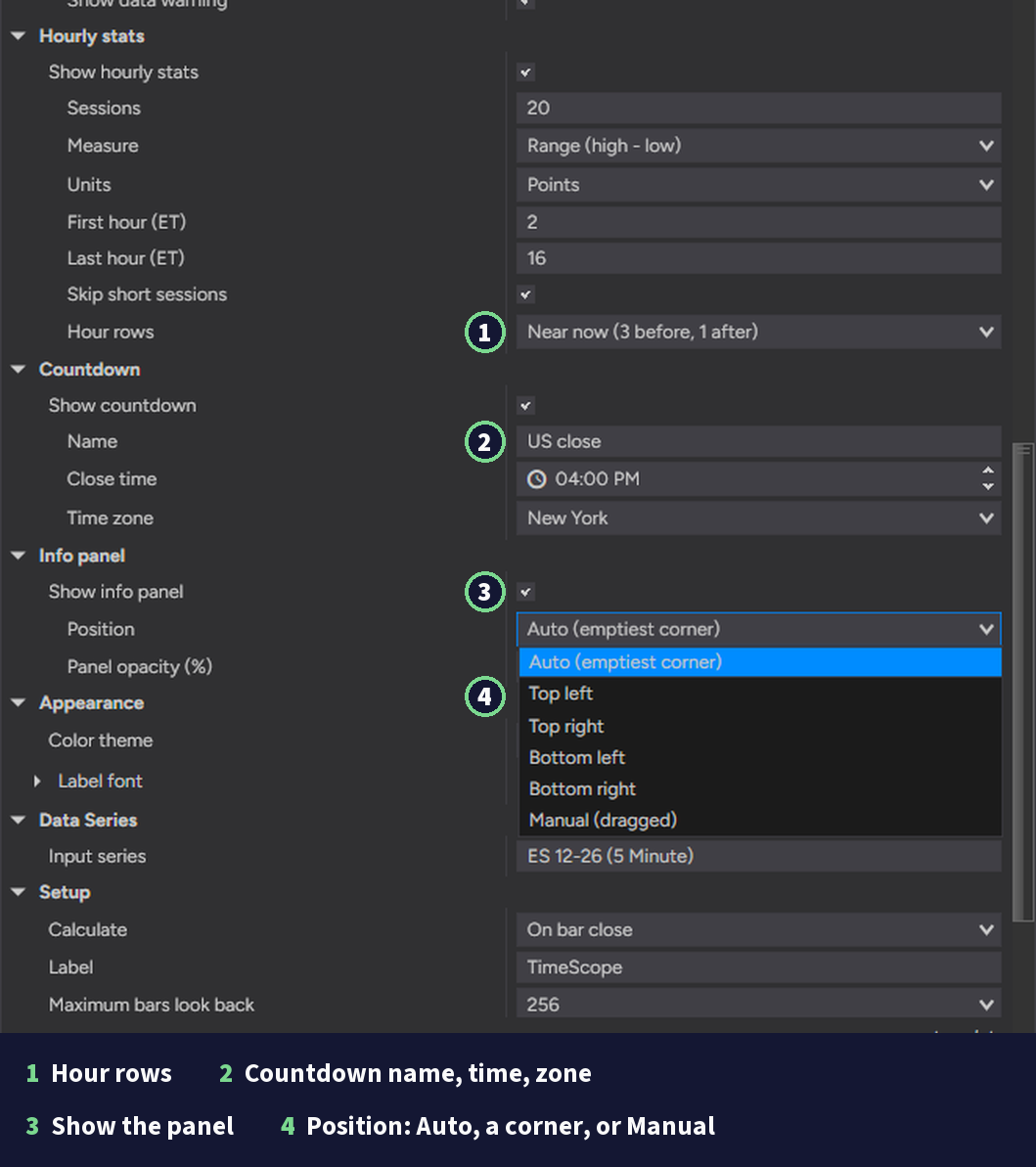
- Hour rows: default Near now (3 before, 1 after): the current ET hour, the 3 hours before it and the 1 after it. All: every hour from First hour to Last hour. With the info panel off, the table on the chart shows every hour.
Countdown
- Show countdown: default on. Time left to the close, in the info panel (with the panel off, in the upper right corner). In Playback it uses the Playback clock. TimeScope does not know exchange holidays: on a holiday it counts to that day's close time.
- Name: default US close. The text before "in".
- Close time: default 16:00.
- Time zone: default New York.
Info panel
- Show info panel: default on. One panel with the countdown, the last hour delta and the Price move per hour table. Drag it with the mouse to move it, and it stays where you drop it.
- Position: default Auto, the corner of the chart with the fewest bars under the panel. You can also pick Top left, Top right, Bottom left or Bottom right. Dragging the panel sets Manual. Picking Auto or a corner moves a dragged panel back.
- Panel opacity (%): default 92. 10 is almost clear, 100 is solid. The text stays solid.
Appearance
- Color theme: default Wizdough, our brand colors, safe for color blind traders. Classic is the original look, and Cyberpunk is neon for dark charts. A color you set by hand stays when you switch.
- Label font: default Segoe UI 11. The font of all TimeScope text: labels, table, countdown and notes. A size under 10 is drawn at 10.
Get the product
View productTimeScope
Time ranges, the last hour delta and hourly stats on your chart.. Free with a Wizdough account.