Open the settings with a right click on the chart and Indicators, then select Tick Chart Compare in the list of indicators on the chart.
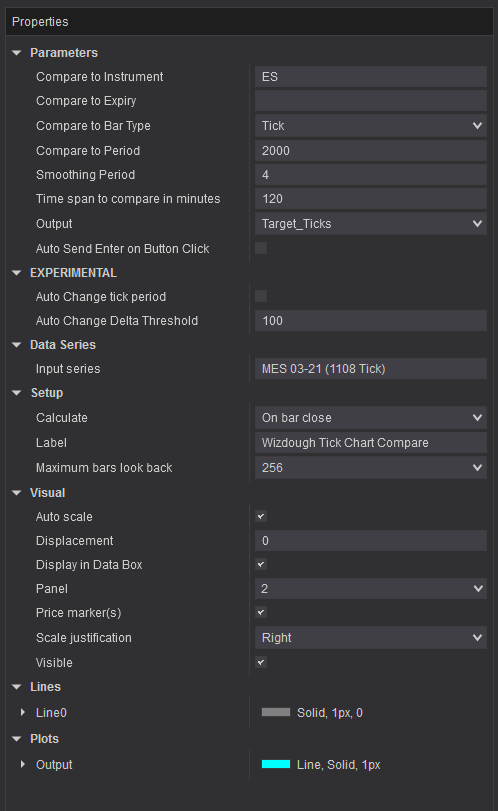
Parameters
- Compare to Instrument: default ES. The reference instrument, without the month and year.
- Compare to Expiry: empty by default, which uses your chart's expiry. Type an expiry such as 12-26 to compare with a different contract month.
- Compare to Bar Type: default Tick. Any bar type works, for example Minute or Range.
- Compare to Period: default 2000. The size of the reference bars.
- Smoothing Period: default 4. Smooths the output, so the target does not jump from bar to bar. A higher number changes it more slowly.
- Time span to compare in minutes: how far back both charts count their bars.
- Output: what the line shows: the difference in bars, that difference as ticks to add to or take off your interval, or the target interval (your current interval plus that amount).
- Auto Send Enter on Button Click: off by default. When on, the Sync button also presses Enter, so the new interval applies at once.
EXPERIMENTAL
- Auto Change tick period: off by default. Changes the interval by itself when the delta reaches the threshold below. The chart must have focus for it to work.
- Auto Change Delta Threshold: default 100. How far the delta must move before Auto Change tick period acts.
For normal use, we recommend the Sync button.
The Sync button
The indicator adds a button to the chart toolbar. A click types the target interval into the chart, the same as typing it yourself. Press Enter to apply it, or turn on Auto Send Enter on Button Click.
Get the product
View productTick Chart Compare
Trade MES Closer to ES 2000 Ticks. $49 · one-time purchase.