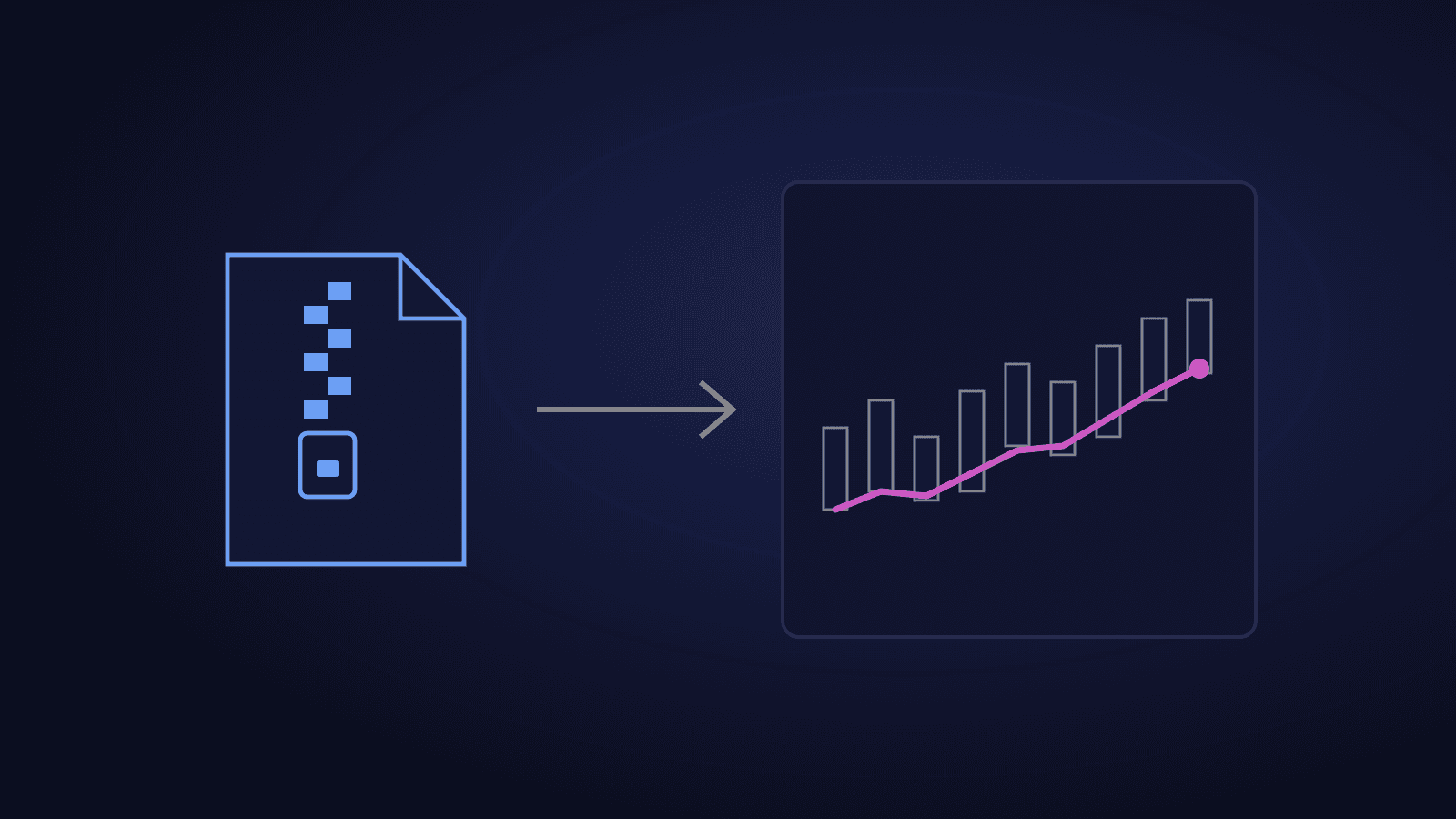
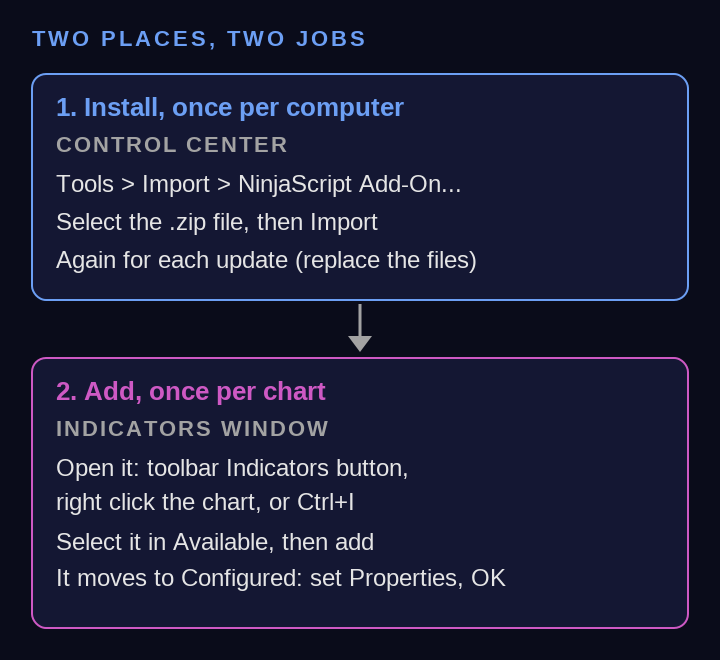
You import the zip file, open your chart, and it looks exactly the same as before. Nothing is broken. Installing and adding are two separate steps in two separate windows: the import puts the indicator on your computer, and the Indicators window puts it on one chart. You repeat the second part for every chart where you want it.
The NinjaTrader steps below follow NinjaTrader's own help guide, with the page linked in each section. The few steps that come from our product guides are marked as ours.
Before you import: trust the source
The help guide page on third party add-ons explains why the source matters. NinjaTrader gives add-on developers low level access to the platform, an add-on with bugs can cause problems across the whole application, and add-ons run natively on your computer. Its advice is to install add-ons only from sources you trust. The Import page says the same about NinjaScript Archive files, which are the .zip files vendors send.
The same add-ons page notes that a vendor may have different installation instructions. Read the vendor's steps first. What follows is the standard path.
Step 1: import the zip file in the Control Center
You do this once per computer, and again for each update. The menu path is from the third party add-ons page.
- In the Control Center, go to Tools, then Import, then select NinjaScript Add-On... to open the Import dialog.
- Select the .zip file you downloaded.
- Select Import.
An import compiles your whole NinjaScript library, not only the new file. The help guide says so on its page about NinjaScript programming errors. So an error in a script you installed months ago can stop today's import. The section on failed imports below covers that case.
Our own install guides add one step for our tools: restart NinjaTrader if it asks you to.
Step 2: add the indicator to a chart
The Working with Indicators page lists several ways to open the Indicators window from a chart. These three are the quickest:
- select Indicators in the chart toolbar;
- right click the chart background when no chart object is selected, then select Indicators;
- press Ctrl+I while the chart has focus.
The window has five sections: Search, Description, Available, Configured and Properties. Available lists every indicator you can add. Configured lists the ones already on this chart.
- Find the indicator in Available. If the list is long, type part of its name in Search.
- Select it, then select add in the Configured section. A double click in Available does the same.
- With the indicator selected in Configured, set its parameters in Properties.
- Select OK to close the window.
Can't find the new indicator in Available? Search for its name. Vendors often keep their tools in a folder of their own, and ours sit in a Wizdough folder.
To keep your settings for the next chart, save them as a template. The help guide says that if you save the template as Default, NinjaTrader uses those settings the next time you add that indicator to a chart.
Not every add-on is an indicator. A bar type, such as our free WiRenko, is picked in the chart's Data Series window like a built in bar type, not in the Indicators window. Our WiRenko install guide shows where.
Update an indicator
The third party add-ons page covers updates. Import the new zip file the same way: Tools, then Import, then NinjaScript Add-On.... During the import, NinjaTrader offers to replace the add-on files already on your PC. Accept the replacement for each file you want to update. Then restart NinjaTrader so it runs the latest code.
When the import fails
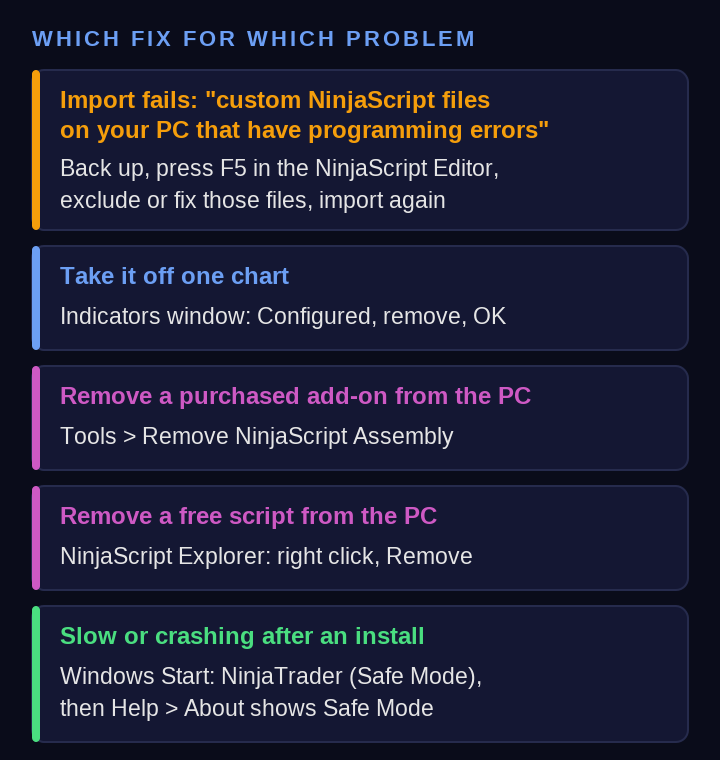
"You have custom NinjaScript files on your PC that have programming errors..." is the import error with its own help guide page. It is about the NinjaScript files already on your PC. Because an import compiles the whole library, every one of them has to compile before the new file can go in. The help guide page How do I resolve NinjaScript Programming Errors? has the full procedure. The short version:
- Back up first: Tools, then Export, then Backup File. Check NinjaScript Files and select Export.
- Open New, then NinjaScript Editor, and press F5 to compile. The errors appear at the bottom of the editor with the name of the file each one is in.
- If you no longer need a file with errors, right click it in the editor and select Exclude from Compilation. The code stays on your PC but is not compiled. Remove deletes it instead.
- Press F5 again until no errors are left, then run the import again.
Two catches. If another script refers to the file you exclude, you must remove that reference first. And if the file with errors is one you still need, the same page explains how to comment out parts of it until it compiles. When nothing else works, the page's last step is a reinstall of NinjaTrader after the backup.
Remove an indicator
Removing an indicator can mean three different things.
To take an indicator off one chart, open the Indicators window, select it in Configured, select remove, then OK. Selecting it on the chart and pressing Delete also works. The file stays installed, so you can add it again later. Both ways are on the Working with Indicators page.
To take a purchased add-on off your PC, go to Tools, then Remove NinjaScript Assembly. The third party add-ons page says a purchased add-on is likely a protected assembly, and that if you can't find it in that dialog, it is most likely a non protected script.
Most free add-ons from forums are non protected C# scripts, according to the same page. To remove one, go to New, then NinjaScript Editor. In the NinjaScript Explorer, expand the folder for its type, find its name (it may be in a subfolder), right click it and select Remove.
If NinjaTrader slows down after an install
The add-ons page lists the symptoms of an add-on that causes problems. NinjaTrader windows become slow or stop responding, market data loads or updates slowly, standard features or other scripts stop working, connections to data providers drop, unexpected error messages appear, or NinjaTrader shuts down without warning. Its advice is to uninstall the add-on, see whether the problem goes away, and then contact the add-on's developer.
To check first without removing anything, start NinjaTrader in safe mode, where it runs without third party add-ons:
- Shut down NinjaTrader.
- Select the Windows Start button, then search for and launch NinjaTrader (Safe Mode).
- Go to Help, then About. The version shows Safe Mode between the version number and 64-bit.
If the problem is gone in safe mode, an add-on is the likely cause. The help guide doesn't say how to tell which one when you have several. Removing them one at a time, with a test after each, narrows it down, but it takes a while.
Practice on a free tool
If you want a safe first install, two of our free tools are indicators. Indicator Toggle puts one button on the chart toolbar to show or hide each indicator. TimeScope shades clock windows such as the Europe open and shows how far each hour moved over the last 20 sessions. Both are free with a Wizdough account, and each has a step by step install page: Indicator Toggle getting started and TimeScope getting started.
Once it is on the chart, the next question is which indicators earn the space. Our best NinjaTrader 8 indicators guide starts with the free ones that ship with the platform.
Futures trading involves substantial risk of loss and is not appropriate for all investors. Past performance is not indicative of future results.
Get the trading tool updates.
New releases, setup guides, and the occasional NinjaTrader tip. About once a week.