In September a trader asked on the NinjaTrader forum why Playback would not go back far enough. In the Historical Data window that opens with Playback, minute data was there for every month of the year. Charts showed price bars for the same months and earlier. But when they played back historical data, the price only started on June 11 at midnight.
The same day, the same trader asked a second question: how do you get a full year of data for replay, at 1 minute resolution? The most it seemed to offer was six to nine months.
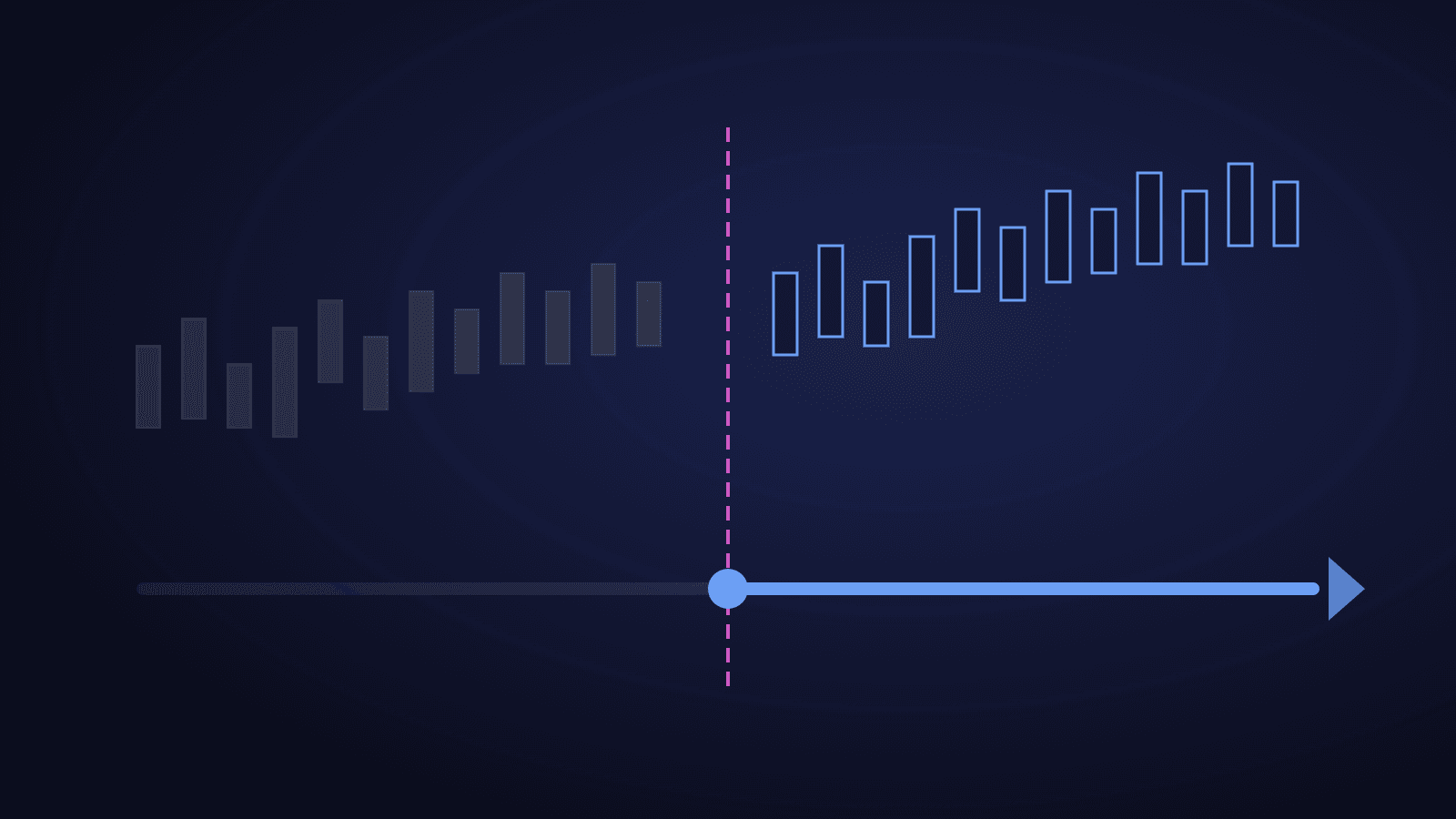
Both questions have the same answer, and one of the replies in the first thread was ours. Playback with historical data does not replay your minute bars. It replays tick data. The slider can only start where your tick history starts.
Playback has two kinds of data
The Playback Connection plays recorded market data back as if it were live, in every NinjaTrader window at once. The help guide page Set Up says you can play back either Market Replay data or historical tick data. In the Playback control you choose between them with Playback Type, set to "Market Replay" or "Historical", as the Playback page describes.
Market Replay data holds the exact sequence of level 1 and level 2 (market depth) data. NinjaTrader has to record it, or you download it from NinjaTrader. The Set Up page calls it the most accurate reflection of live market conditions.
Historical uses historical tick data from your data provider. It has no market depth, and the Set Up page says its granularity and accuracy depend on your provider. The Playback page adds that if the provider's ticks are not stamped with bid and ask, NinjaTrader simulates the bid and ask. It sets them to the last price, or to the last price plus or minus 1 tick at random.
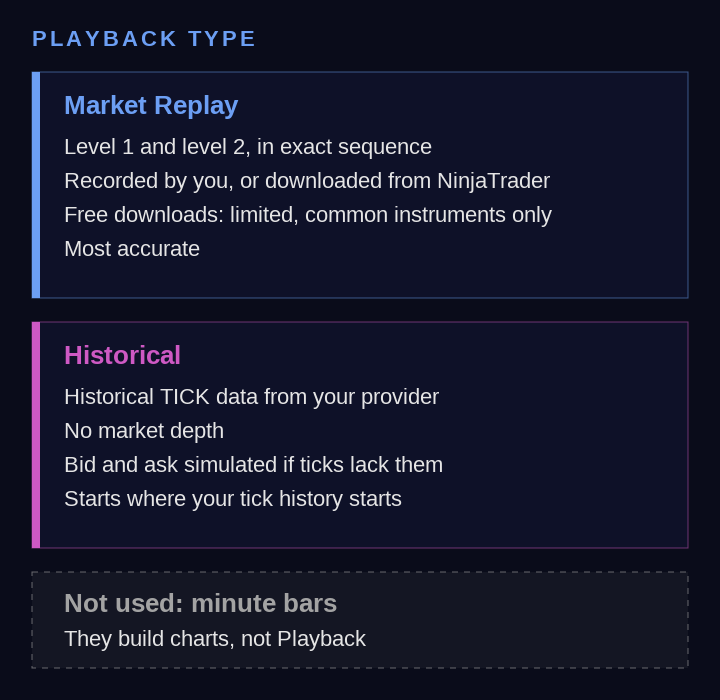
Minute bars are not on that list. The help guide page Data Files says it in one line: for Historical playback, NinjaTrader uses historical Tick data.
Why the chart goes back further than Playback
A chart builds its bars from whatever history it can load. A minute chart can draw from minute data. So months of minute history give you months of chart, even if you have only a few months of ticks.
Historical Playback cannot use that minute history. It needs ticks. If your stored tick data for the instrument begins on June 11, Historical Playback begins on June 11, however far back the minute data goes. That fits what the trader saw: minute data for the whole year, a chart that went back further, and a replay that would not start before one date.
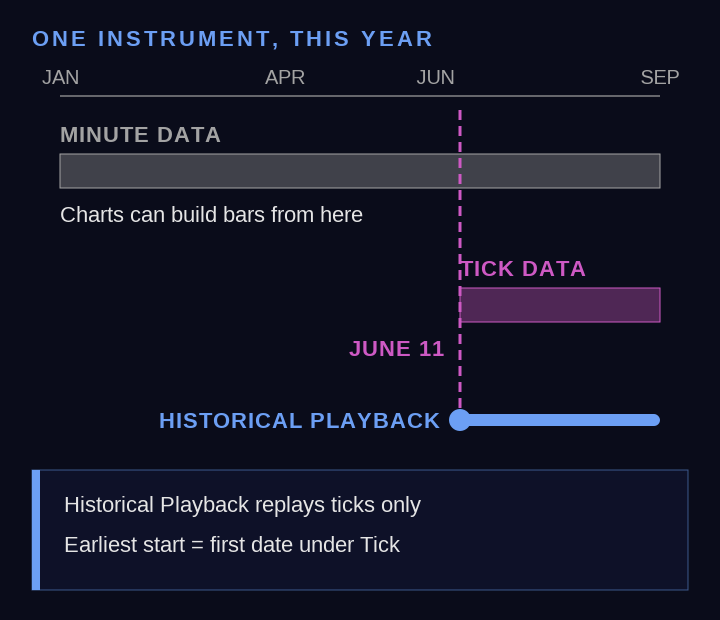
The same holds for the second question. Asking for a year of replay "at 1 minute resolution" is not something Historical Playback can do. To replay a year, you need a year of tick data.
How to find your real start date
You can see the start date before you connect.
- In the Control Center, open Tools, then Historical Data. The same Historical Data Window also appears before you connect to Playback, as the Playback Connection page notes.
- Expand Historical, then your instrument, then a data type. The Editing page lists Ask, Bid and Last. We use Last, the traded prices.
- Expand Tick, not Minute. The first date listed under Tick is where your tick history starts. Historical Playback replays tick data, so that is the earliest day it can start from.
For Market Replay data, the Playback page has a shortcut. Right click the Playback control and choose Show Available Data. The Historical Data window opens and lists instruments that have replay data, with the level 1 and level 2 begin and end dates.
How to get more history
If the Tick list starts later than you want, you need tick data for the older dates. The help guide does not say how many months of ticks each provider keeps, so go by the Tick list in your own Historical Data window, not by a number from a forum post.
Download tick data from your provider
The Download section of the Historical Data window takes an instrument, a start and end date, and the intervals and data types to fetch. Pick Tick. How far back you can go depends on the provider. The Data by Provider page shows which providers offer historical tick data, and notes that each provider has its own limits on data. Two warnings from the Download page are worth reading before you press the button:
- If you already have data for the instrument, pick only a date range your provider offers. If you ask for a range older than the provider offers, you may lose data you had stored on those dates.
- Downloads follow the Merge Policy. With "Merge back adjusted" or "Merge non back adjusted", the contract month being downloaded switches at each rollover inside the range. Set Merge Policy to "Do not merge" if you only want the contract you selected.
Download Market Replay data from NinjaTrader
The Set Up page says NinjaTrader offers a limited amount of Market Replay data free, for the most common instruments only. You get it from the "Get Market Replay data" section of the Historical Data window. Two notes on the same page: turn off "Enable market recording for playback" in Tools, Settings, Market data first, and disconnect from Playback before you download.
Record it yourself
With "Enable market recording for playback" turned on, the Set Up page says data is recorded for any instrument in any NinjaTrader window that is receiving live market data. Market depth is recorded only when a Level II, SuperDOM or FX Pro window is open for that instrument. The Set Up page recommends the Market Analyzer for this, because one Market Analyzer can hold many instruments. Since it records live data, it can only cover dates from the day you turn it on. It helps next month, not this afternoon.
Which one to use
Market Replay is the closer match to a live session. It has market depth, and the events stay in their real order. The Playback page offers Historical for time frames where you have no Market Replay data, and calls it less accurate because it has no level 2 data. On the Historical side, check whether your provider's ticks carry bid and ask stamps. If they do not, the bid and ask you see in Playback are simulated.
If you test a NinjaScript strategy in Playback, the Playback page has one more tip: the chart you apply the strategy to should have bars on it before the start time of your replay.
A short checklist
- Check Playback Type. "Historical" replays tick data. "Market Replay" replays recorded replay files.
- In Historical Data, expand Historical, your instrument, Last, then Tick. The first Tick date is your earliest start.
- Ignore the minute dates. A chart can use them. Historical Playback cannot.
- To go further back, download tick data for the older dates, within what your provider offers, and with the Merge Policy you mean to use.
- If your provider has no tick history that far back, record Market Replay data from now on, or use the free Market Replay downloads where they exist.
As of November 22, the first thread had no accepted answer. If your Tick list starts on one date and Playback still will not start there, send us the details through the contact page.
Futures trading involves substantial risk of loss and is not appropriate for all investors. Playback replays stored data in a simulated account and does not predict live results.
Get the trading tool updates.
New releases, setup guides, and the occasional NinjaTrader tip. About once a week.