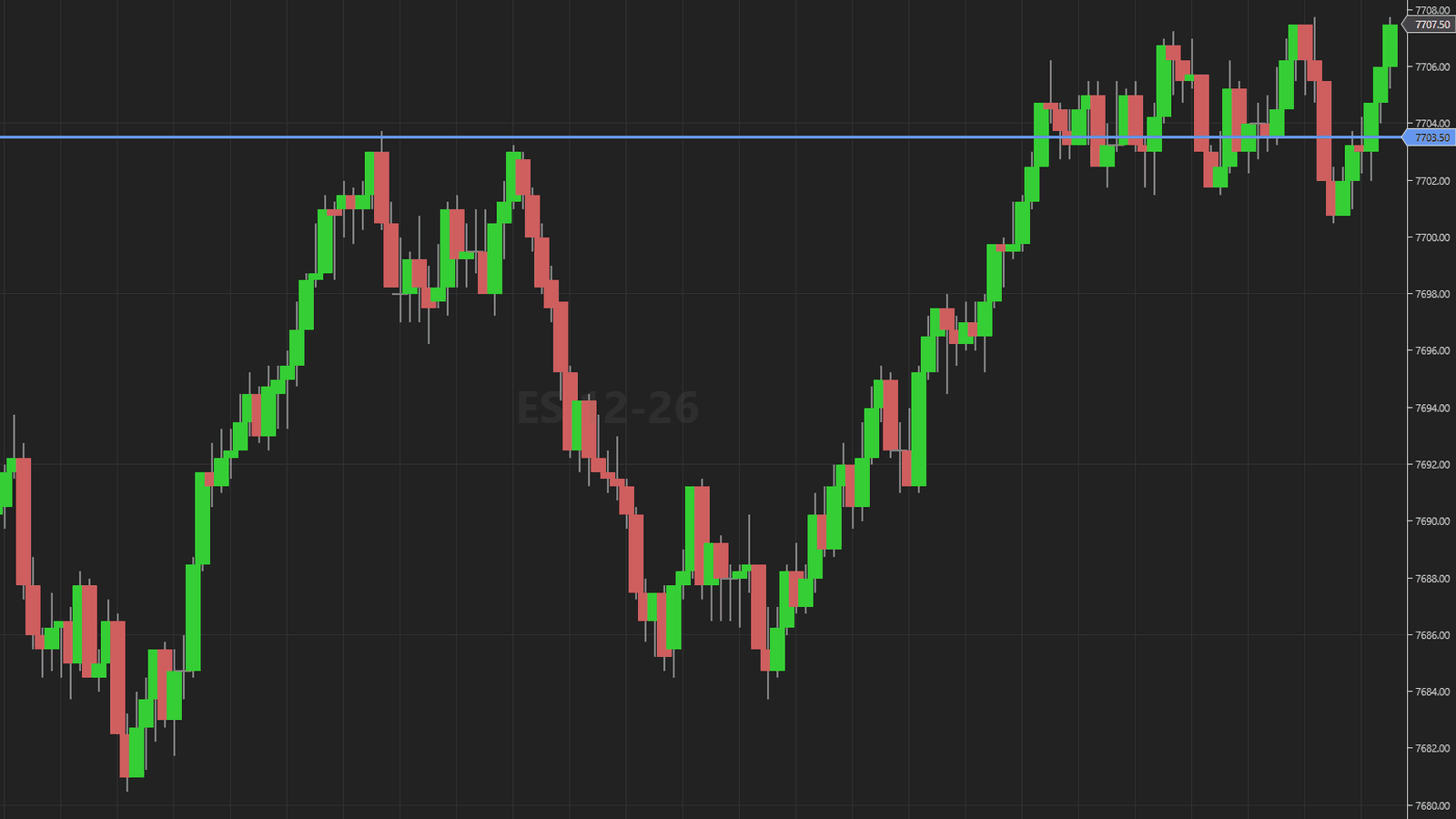
You have a level. It is the high of a signal bar, a swing point, a line an indicator drew. You want to be filled there and nowhere else. So you reach for Chart Trader, and before you can place anything you have to answer a question: is this a stop order or a limit order?
The answer is not a preference. It is geometry, and NinjaTrader 8 will let you get it wrong.
The rule, and why it feels backwards
For a buy, the split is simple. If your level sits above the current price, the only order that waits there is a stop. A buy limit above the market is marketable the instant it is accepted, so the platform fills you now at whatever the book offers instead of later at your number. If your level sits below the current price, it is a limit. A buy stop below the market has the same problem in reverse.
For a sell, both halves swap. Above the market is a limit, below it is a stop.
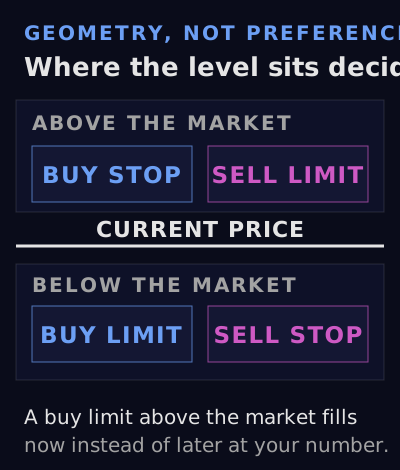
That is four cases. They are easy to keep straight while you read about them, and harder at the moment you need them, with the market moving toward a level you picked ten minutes ago. Written as code, with dir positive for a buy and v the price of the level, the whole decision is four branches:
oType = v > Close[0]
          ? dir > 0 ? entryTypeStop  : entryTypeLimit
          : dir > 0 ? entryTypeLimit : entryTypeStop;
Nothing clever happens there. A person can apply the rule and so can a machine. Only the person is working against the clock.
Two order types per side, not one
The choice is a little wider than stop or limit, and the second half of it is worth setting once.
On the waiting side, a Limit order rests in the book at your price. A Market if Touched order does not rest anywhere: it sits on the platform until your price trades, then goes out as a market order. Limit means you get your price or nothing. MIT means you get filled, at whatever the next available price turns out to be.
On the triggered side, a Stop Market order becomes a market order when your price trades. A Stop Limit becomes a limit order at your price instead. That protects you from a bad fill on a fast move, and leaves you flat if the move never comes back.
Neither pair has a member that is always right. Each trades certainty of fill against certainty of price, and which one you want depends on the instrument and the setup, not on the day. That kind of decision belongs in a settings screen, made once while calm, not in a dropdown you click during the setup. An order tool that places entries for you should keep the two as separate settings, an entry type for the limit side and one for the stop side, and use the pair you picked on every order.
What happens when the level crosses the price
Levels move, and that is how a rule you applied correctly ends up wrong anyway. A swing point updates, a moving average slides, a line gets redrawn. The order you placed knows none of that. If you attach it to the plot and let the price follow, an order that started as a correct buy limit below the market can find itself above the market ten bars later. At that point it is no longer the order you reasoned about. It is a marketable order at a price the market has already passed.
NinjaTrader 8's built in Attach to Indicator will carry an order across that line without comment, because attaching changes the price and only the price. We wrote about where that feature runs out in Attach to Indicator: what it does and where it runs out, and this is the limit with real money attached to it.
A tool that follows the level can guard half of this without guessing what you want. A stop order should never be chased through the market: if the new level has reached or passed the last price, the repricing should stop there and the order should keep the price it has. A stop already sitting beyond the current price should be left alone for the same reason. Limit orders are harder. One already on the wrong side can be left where it is, but a limit that is still correctly placed can be repriced to a level that has since crossed the market. That is the case to watch on a fast move. Check what your own tool does here instead of assuming, and watch it in sim on your own instrument.
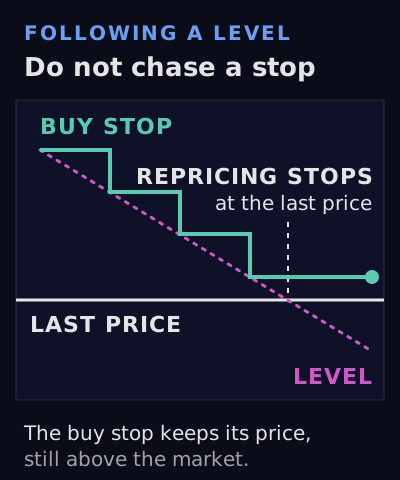
Two smaller checks follow from the same idea:
- It should touch only orders in a Working or Accepted state. Anything that has reached a terminal state (filled, cancelled or rejected) should drop out of the managed set the moment the account reports it.
- It should round every reprice to the instrument's tick size, so a plot value that lands between ticks does not go out as an unfillable number.
An option to reprice only toward the market limits the order to moves that bring it closer. It matters because a level that wanders away from price can walk your entry somewhere you never meant to trade.
Which bar the level comes from
One detail decides whether the price you get is the price you meant.
An indicator that calculates on bar close has no value yet for the bar in progress, so reading the current bar gives you either nothing or a stale figure. An indicator that calculates on each tick does have one, and it can change several times before that bar closes. A signal read off the bar in progress can vanish before the bar closes, so an order placed on it may end up resting at a level that never confirmed. The two need to be read differently, and the difference is one bar.
The fix is to check the attached indicator's own Calculate setting, read the last closed bar when it is on bar close, and read the current bar when it is on each tick. It takes a single line of code, and when it is right you never notice it. If this distinction is new, Calculate: OnBarClose vs OnEachTick is the longer version.
Two more settings are worth having. A BarsAgo lookback should cover setups that reference an older bar, such as the high of the bar before the signal. An Offset in ticks should sit the order a fixed distance past the level instead of exactly on it. The offset should apply in the direction away from the market, so a buy above sits higher and a buy below sits lower, and it should be stored, not retyped.
Also ask what happens when the indicator has no valid value at the bar being read. One answer is to fall back to a fixed distance from the last price. That order looks like any other order on the chart, so know in advance that this is what an unreadable plot produces.
The bracket is a separate machine
An ATM strategy is NinjaTrader's bracket manager. It attaches to a fill and runs the stop and target from there. Its position and its profit and loss are self contained, and the platform's own sample strategy says so in as many words: an ATM runs on its own and does not affect the position of the script that started it.
Placing the entry is a different job, and it happens before the ATM has anything to attach to. An entry tool can do that job and hand the order to the ATM strategy already selected in Chart Trader, along with the account and quantity you have set there. With no ATM strategy selected, the entry goes out on its own, exactly as a manual order would.
So an entry tool has no reason to trail your stop, move anything to breakeven, or scale you out. Your ATM template already does that, and does it well. What the tool removes is the gap between deciding on a level and having a correctly typed order resting at it.
Trying it
You do not need to buy anything to understand any of this. The geometry rule is free, and a sticky note beside the monitor is a real fix for a real error.
If the error keeps happening anyway, which is common when you only know the level a second or two before it matters, the rule can be automated against any indicator on your chart, including WiSE if you trade second entries. The sections above are what that automation has to get right.
Whatever you use, run it on sim first, on the instrument you actually trade, and compare the order type it chooses with the one you would have chosen. If the two agree every time, you did not need it.
Futures trading involves substantial risk of loss and is not appropriate for all investors. Automating order placement reduces mechanical error; it does not create an edge.
Get the trading tool updates.
New releases, setup guides, and the occasional NinjaTrader tip. About once a week.